Build and save a dashboard
Add three widgets to Trader Dash, arrange them, save the arrangement under a name, add a second tab and open a widget from a link.
Goal
Arrange three widgets on Trader Dash, save a named copy of the arrangement, and add a second tab.
Before you start
Sign in, then click Trader Dash in the top bar. A new dashboard opens with one empty tab named Main.
Steps
-
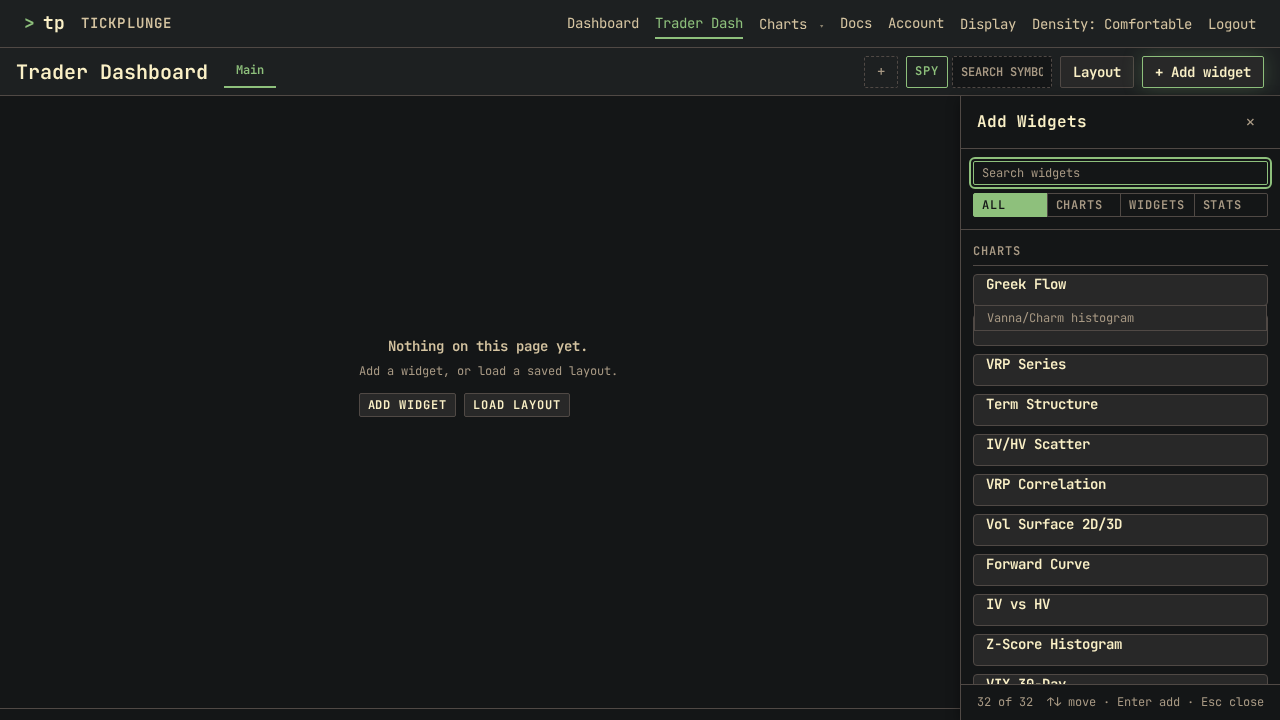
Click + Add widget. The widget picker opens on the right.
-
Under Charts, click IV vs HV. The picker stays open.
-
Under Charts, click Term Structure.
-
Under Widgets, click Stats Panel.
-
Press Escape to close the picker.
-
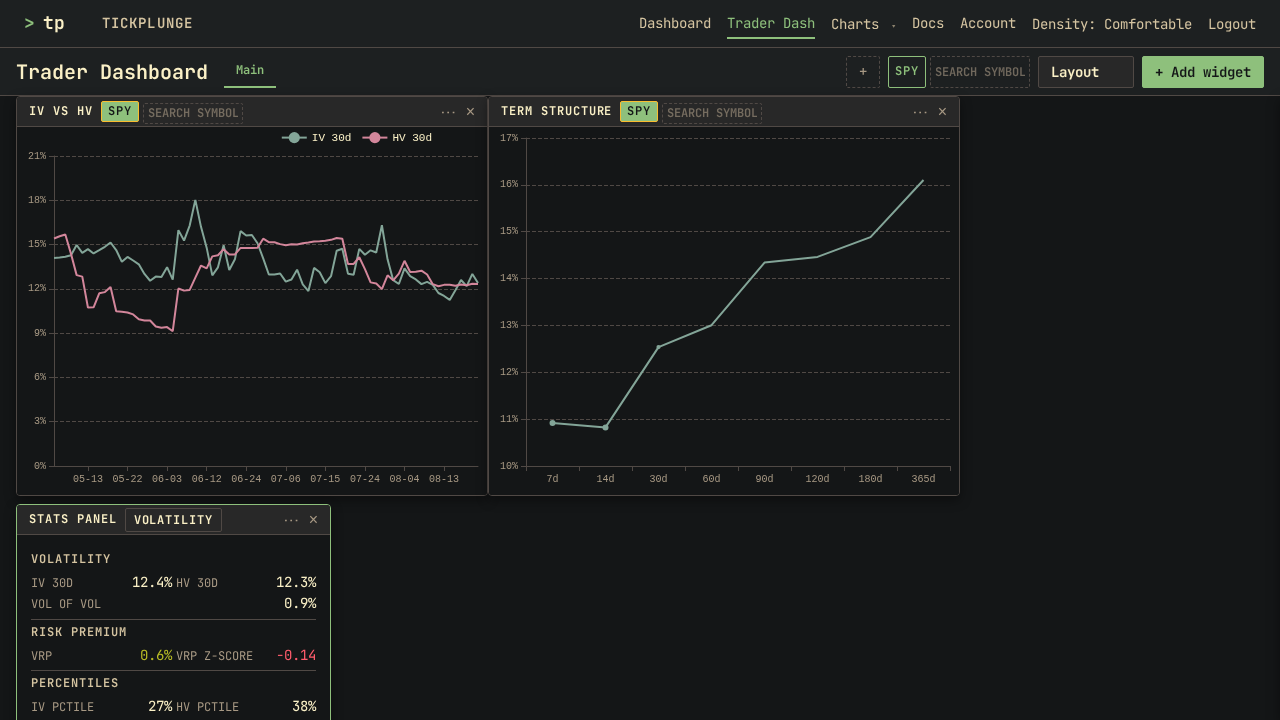
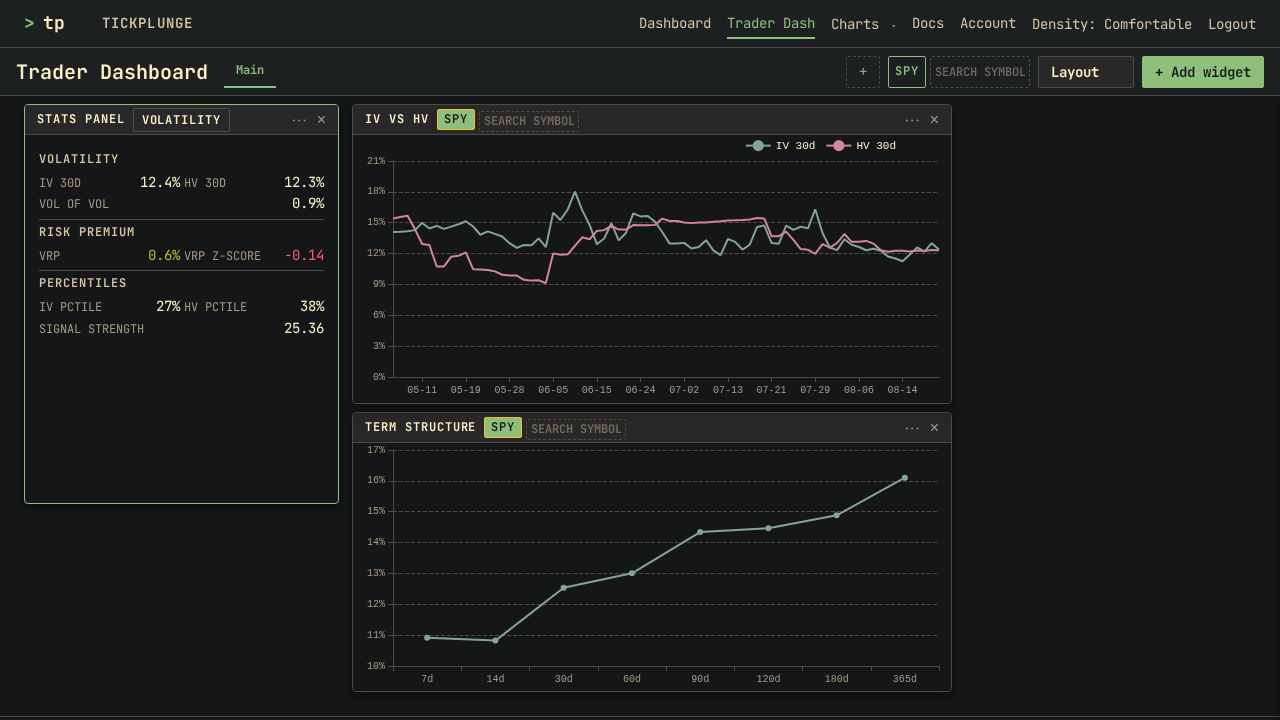
Drag each widget by the strip along the top of its title bar.
-
Drag a side or a corner of a widget to resize it.
-
Click Layout, then select Save as new….
-
Type a name, such as
morning, and press Enter.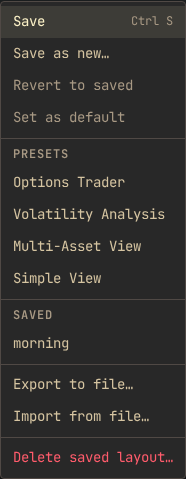
-
Click + at the right of the tab bar, beside the symbol row. A second, empty tab opens beside Main.
-
Double-click the new tab, type
research, and press Enter.
Result
The first tab shows the three widgets in the arrangement you set. The second tab is empty.
Trader Dash saves every tab shortly after each change, in the browser and on the server. There is no manual save. A reload, or a sign-in on another computer, opens the same tabs.
The name under Saved is a separate copy of every tab at the time of saving. Select it from Layout to return to that arrangement after later changes. Layout displays the name of the loaded copy. A dot after the name means the dashboard has changed since you loaded or saved it.
Other ways
Start from a preset
Layout lists four presets under Presets: Options Trader, Volatility Analysis, Multi-Asset View and Simple View. Selecting a preset replaces every tab with the preset's widgets. Save your own arrangement under a name first.
Open a widget from a link
Add ?pin= and a widget id to the dashboard address to add that widget
when the page opens. Add &symbol= to set its symbol:
/trader-dashboard?pin=iv-hv&symbol=QQQ
The widget opens on the current tab. The site then removes the ?pin=
part from the address, so a reload does not add a second copy. A widget id is the anchor
of the widget's section on the widget pages, such as iv-hv in
/docs/widgets/volatility-premium#iv-hv.
Linked widgets
The symbol row above the tabs sets the symbol of every widget that follows it. A widget's own symbol row changes that widget only.
Stats Panel has no symbol selector. On Trader Dash, Stats Panel shows statistics for the first open widget in this list: VRP Series, Z-Score Histogram, VIX 30-Day, Vol Surface 2D/3D. Greek Stats Panel follows Greek Flow and its tenor, and Dist Stats Panel follows Distribution, on any tab.
Click a cell of Vol Surface 2D/3D to redraw Term Structure at that cell's delta and Vol Smile at its tenor.
The arrow in a widget's title bar opens the widget's full page in a new browser tab. The full page opens on its own saved symbol. That symbol can differ from the widget's symbol.
Manage tabs
Right-click a tab to display Rename, Duplicate and Delete. To reorder tabs, drag a tab along the tab row, or focus a tab and press Ctrl+Left or Ctrl+Right. Delete removes the tab at once and shows an Undo message for 8 seconds. Select Undo or press Ctrl+Z to restore the tab with its name, position and widgets. A dashboard holds up to 20 tabs. A tab name is up to 24 characters.
Move a layout to another browser
In Layout, Export to file… saves the whole dashboard as a file, and Import from file… loads one. Use these to share an arrangement or to keep a copy outside the site.
If something goes wrong
- A widget is off screen or under another widget: press Ctrl+Shift+G to arrange every widget in rows from the top left.
- You closed a widget by mistake: press Ctrl+Z (Cmd+Z on a Mac) to reopen it. The last ten closed widgets reopen, newest first.
- Pressing Enter does not save the name: the name field is empty. Type a name and press Enter again.
- The link does not add a widget: the id after
pin=does not match a widget. Check the id against the widget pages. - Delete on a tab is greyed out: a dashboard must have at least one tab. Add another tab first.